
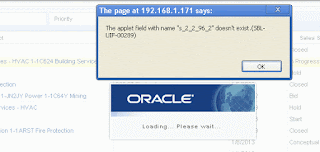
If you are getting an error as shown in figure, when you drilldown or cliking an mvg or pick applet. Please check following steps. You can check following steps if you face any issue in browsers other than IE
1. Go to SiteMap (shortcut: control+shift+A)
2. Click on Administration - Web Browser > Browsers
3. For new SI browsers (e.g. Chrome, Mozilla, Safari): If not present, create a browser with the name "Mozilla 5.0" and with the following capabilities:
a. Set the "User-Agent" capability to "Mozilla/5.0"
b. Set the "Accept" capability to "image/gif, image/x-xbitmap, image/jpeg, image/pjpeg, application/vnd.ms-powerpoint, application/vnd.ms-excel, application/msword, */*"
4. For older SI browsers: If not present, create a browser with the name "Mozilla 4.0" and with the following capabilities:
a. Set the "User-Agent" capability to "Mozilla/4.0"
b. Set the "Accept" capability to "image/gif, image/x-xbitmap, image/jpeg, image/pjpeg, application/vnd.ms-powerpoint, application/vnd.ms-excel, application/msword, */*"
5. After you have made the changes you will need to restart your web server.

1. Go to SiteMap (shortcut: control+shift+A)
2. Click on Administration - Web Browser > Browsers
3. For new SI browsers (e.g. Chrome, Mozilla, Safari): If not present, create a browser with the name "Mozilla 5.0" and with the following capabilities:
a. Set the "User-Agent" capability to "Mozilla/5.0"
b. Set the "Accept" capability to "image/gif, image/x-xbitmap, image/jpeg, image/pjpeg, application/vnd.ms-powerpoint, application/vnd.ms-excel, application/msword, */*"
4. For older SI browsers: If not present, create a browser with the name "Mozilla 4.0" and with the following capabilities:
a. Set the "User-Agent" capability to "Mozilla/4.0"
b. Set the "Accept" capability to "image/gif, image/x-xbitmap, image/jpeg, image/pjpeg, application/vnd.ms-powerpoint, application/vnd.ms-excel, application/msword, */*"
5. After you have made the changes you will need to restart your web server.


